
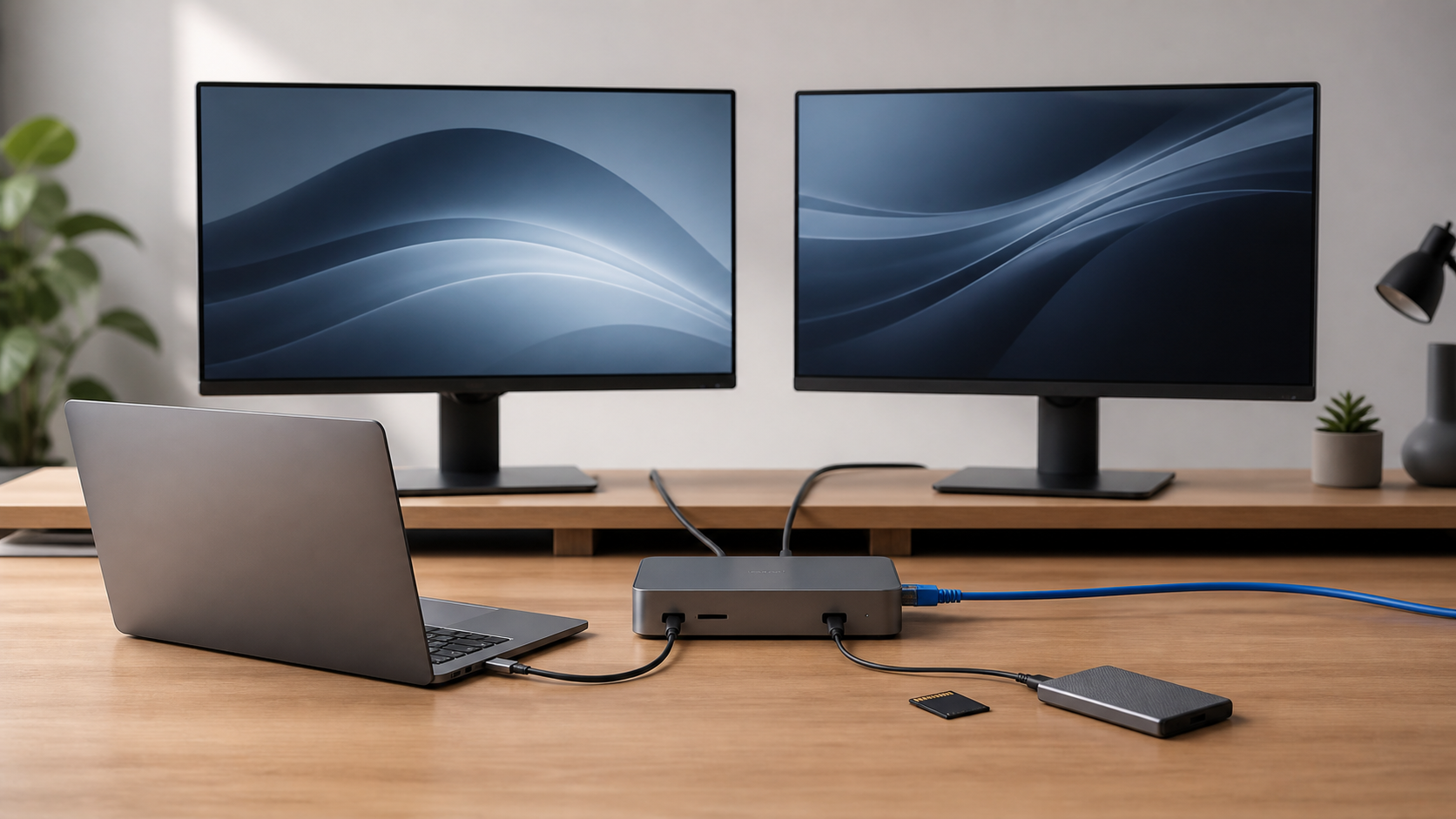
The best docking stations for Mac are not necessarily the models with the most ports. Your Mac’s native display support determines what a dock can do before port count, charging wattage, or network speed matters.
For a Thunderbolt 5 MacBook Pro with fast storage, the OWC Thunderbolt 5 Dock is the balanced pick. The CalDigit TS5 Plus is the maximum-I/O option when 10Gb Ethernet and many USB devices justify its price and it is available. The OWC 11-Port Thunderbolt Dock is the simpler Thunderbolt 4 value choice. If a Mac supports only one native display but your desk needs more, the Anker Prime DL7400 uses DisplayLink to provide a different route—with software and permission requirements.
Gearxis did not test these docks hands-on. This guide compares current manufacturer specifications, Mac compatibility information, price and stock pages, and Apple display-support documentation checked August 6, 2026. Prices and inventory can change; use them as decision context and verify them before ordering.
Quick Picks
| Pick | Best for | Key connection advantage | Main reason to skip |
|---|---|---|---|
| OWC Thunderbolt 5 Dock | Thunderbolt 5 Mac workstations | 140W charging, 2.5GbE, three downstream Thunderbolt 5 ports | Your Mac and peripherals operate at Thunderbolt 4 or slower |
| CalDigit TS5 Plus | Maximum wired expansion | 20 ports, ten USB ports, 10GbE, 140W charging | High cost, large power supply, or unavailable stock |
| OWC 11-Port Thunderbolt Dock | Thunderbolt 3/4 Macs and simpler desks | Three downstream Thunderbolt 4 ports, 96W charging | You need 2.5/10GbE, 140W, or Thunderbolt 5 bandwidth |
| Anker Prime DL7400 | Extra displays on display-limited Macs | DisplayLink-driven multi-monitor output plus 140W charging | You cannot install software, grant Screen Recording permission, or risk protected-video conflicts |
These are workflow picks, not a universal ranking. A MacBook Neo owner seeking two screens has a different compatibility problem from an M5 Pro user moving files to a 10GbE NAS.
Check Your Mac’s Display Limit First
Apple says the MacBook Neo supports one external display up to 4K at 60Hz, and closing the lid does not increase that number. M4 and M5 MacBook Air models support as many as two external displays; Apple also notes that a hub or daisy chain does not raise the Mac’s maximum display count.
Other MacBook Pro generations and chip tiers have their own combinations of display count, resolution, and refresh rate. Verify the exact model in Apple’s support documentation rather than assuming every computer with a Thunderbolt-shaped port behaves the same way.
This creates two dock categories:
- Native Thunderbolt docks carry display signals the Mac already supports. They preserve the cleanest path for high-resolution work, fast storage, and low-maintenance setup, but cannot invent another native display engine.
- DisplayLink docks create additional display output through software-compressed USB graphics. They can solve a display-count problem, but require an application and macOS Screen Recording permission.
Avoid ordinary MST-based “triple-display” docks marketed mainly for Windows. Plugable documents that macOS does not use DisplayPort Multi-Stream Transport to create independent extended desktops, so multiple MST outputs may mirror instead.
Best Overall for a Thunderbolt 5 Mac: OWC Thunderbolt 5 Dock
The OWC Thunderbolt 5 Dock fits a modern Mac workstation that needs fast storage and strong charging without moving to the largest dock in this guide. OWC lists 11 ports, up to 140W host charging, 2.5Gb Ethernet, SD and microSD UHS-II readers, three downstream Thunderbolt 5 connections, USB-A, and audio.
OWC specifies up to dual 6K displays on a supported Mac. That phrase matters: the connected Mac still determines the actual number, resolution, and refresh rate. The dock is backward-compatible, but buying it for a Thunderbolt 3 or 4 Mac means the host connection stays at the older link’s maximum bandwidth.
Choose it for a Thunderbolt 5 MacBook Pro, one or two supported high-resolution displays, fast external SSDs, 2.5Gb networking, and one-cable charging. Skip it when most attached devices are keyboards, mice, and ordinary USB drives. Thunderbolt 5 adds little value when nothing on the desk needs its bandwidth.
Maximum Expansion: CalDigit TS5 Plus
The CalDigit TS5 Plus is for the buyer who can name a use for its unusually broad I/O. CalDigit lists 20 ports: two downstream Thunderbolt 5 ports, five 10Gbps USB-C ports, five 10Gbps USB-A ports, DisplayPort 2.1, UHS-II SD and microSD readers, three audio connections, and 10Gb Ethernet. Host charging reaches 140W, while three USB-C-class connections can each provide up to 36W.
The decisive feature is 10GbE. It can matter for a workstation connected to a compatible NAS or high-speed local network; it does not make ordinary internet service ten times faster. The ten USB ports are equally specific: they are valuable for studios with storage, capture, audio, card, and charging devices, but excessive for a keyboard and backup drive.
CalDigit’s US store listed the TS5 Plus at $499.99 and out of stock during this check. Treat it as the maximum-expansion choice when available, not the default recommendation. The 330W power supply and 1.98-pound dock also belong on a permanent desk rather than in a travel bag.
Best Value for Thunderbolt 3 and 4 Macs: OWC 11-Port Thunderbolt Dock
The OWC 11-Port Thunderbolt Dock covers the needs of many desks without charging for Thunderbolt 5 hardware the host cannot use. OWC lists three downstream Thunderbolt 4 ports, four USB ports, Gigabit Ethernet, an SD reader, audio, and 96W laptop charging. It works with Thunderbolt 3 Macs running macOS 11.1 or later as well as newer compatible hosts.
This is the practical choice for an older MacBook Pro, a Thunderbolt 4 MacBook Air, or a desk built around one supported display and ordinary external storage. Three downstream Thunderbolt ports also let you connect displays or devices without relying on a fixed HDMI or DisplayPort layout.
Skip it if a 16-inch MacBook Pro needs the full 140W available from a higher tier, your NAS workflow genuinely uses more than Gigabit Ethernet, or you are buying new Thunderbolt 5 storage. It is a value recommendation because its limits match a simpler workstation—not because it wins every specification column.
Best for Extra Displays on a Limited Mac: Anker Prime DL7400
The Anker Prime DL7400 addresses a different problem. Its DisplayLink system can drive an expanded multi-monitor desk from Macs whose native display support is more restrictive. Anker lists HDMI and DisplayPort outputs, three data-and-charging USB-C ports, three USB-A ports, 2.5Gb Ethernet, SD and microSD readers, audio, and up to 140W to a compatible laptop.
Anker listed it at $299.99 and in stock during this check. Its host data link tops out at 10Gbps, so it is not a substitute for Thunderbolt 5 when fast storage is the priority. It supports macOS 13.5 or later and requires DisplayLink for its software-assisted displays. macOS asks for Screen Recording permission so the software can send the desktop to those outputs; Anker states that it does not record or save the content.
DisplayLink documents a separate protected-video limitation on macOS. While a DisplayLink screen is connected, protected content from services including Netflix, Prime Video, Disney+, and Apple media may remain black while audio plays. DisplayLink says the restriction can affect every screen, not only the DisplayLink output. Its suggested workarounds include disconnecting DisplayLink screens, changing browser, or disabling browser hardware acceleration, but none is as seamless as native display output.
Choose the DL7400 when additional independent displays matter more than a native, driver-free signal path. Skip it for managed computers where software installation or the required permission is prohibited, when protected streaming video is part of the docked workflow, or when a supported Thunderbolt Mac can already drive the required displays natively.
For a concrete example of a one-display host, see our refurbished MacBook Neo review. For broader model selection, our Best MacBooks guide separates Neo, Air, and Pro by the limits each tier removes.
The Gearxis Four-Step Dock Test
- Identify the exact Mac and its native display maximum. Do not begin with the dock listing.
- Count the displays you actually need. If the number exceeds the Mac’s native support, decide whether DisplayLink software and permissions are acceptable.
- List the sustained connections. Separate high-bandwidth storage, 2.5/10GbE, and high-resolution displays from low-bandwidth keyboards, mice, audio, and charging.
- Match power after connectivity. A 140W dock is useful only when the Mac accepts that charging level. Lower-power MacBooks do not charge faster simply because the dock advertises a larger number.
This rule prevents two expensive mistakes: buying an MST dock that mirrors displays on macOS, or paying for Thunderbolt 5 and 10GbE while every attached device operates far below those limits.
The OWC Thunderbolt 5 Dock is the balanced choice for a current high-bandwidth Mac workstation. The OWC 11-Port dock is enough for many Thunderbolt 3 and 4 desks. The TS5 Plus earns its premium only for a port-heavy, 10GbE workflow and available stock. The Anker DL7400 is the specialist choice when software-assisted display expansion solves a limitation your Mac cannot handle natively.