
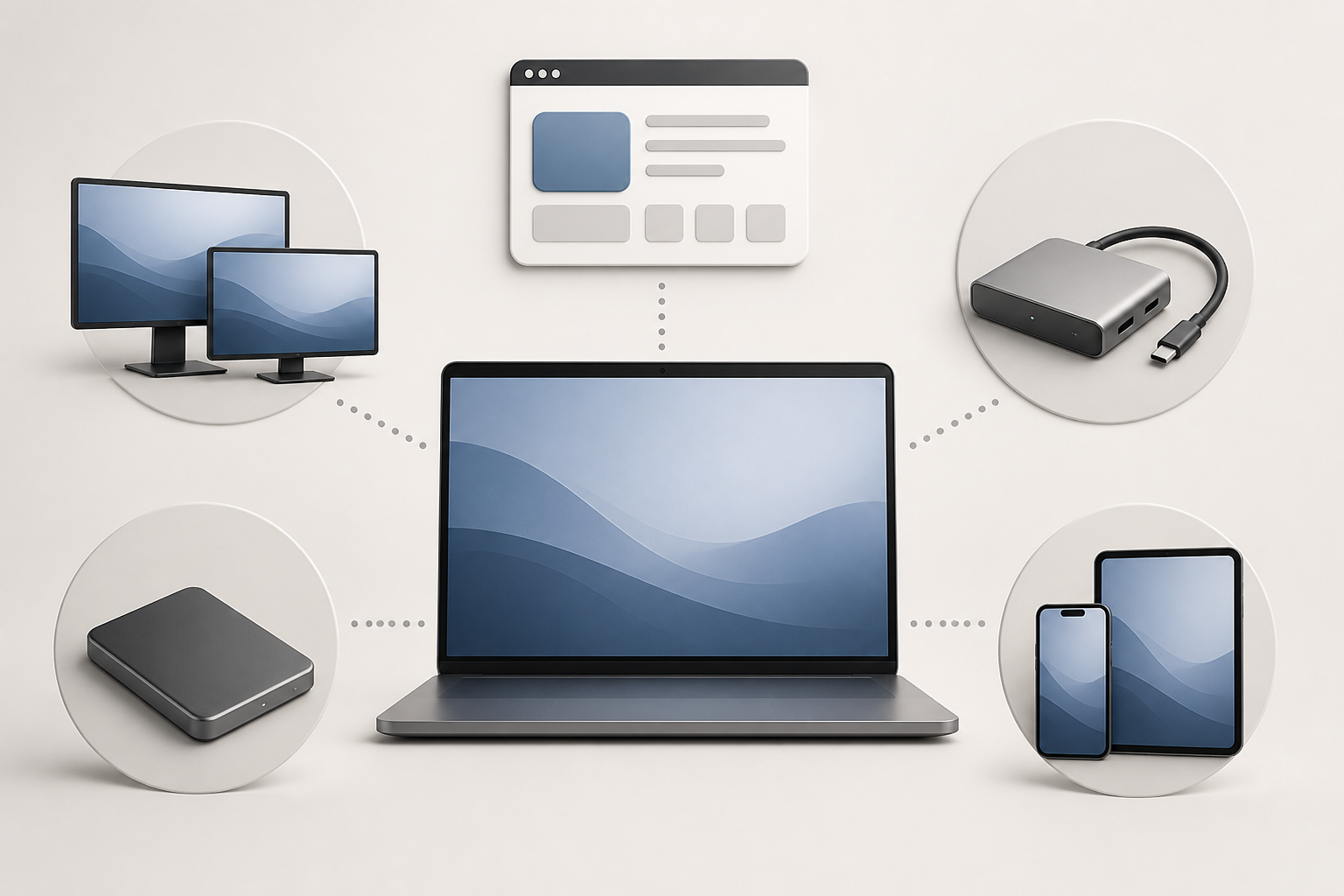
A MacBook compatibility checklist should begin with the work you cannot afford to lose—not with processor speed, color, or storage capacity. A required Windows application, two-monitor desk, specialist audio interface, or company security tool can turn an otherwise excellent laptop into the wrong purchase.
The central trade-off is straightforward. A MacBook can offer a tidy, efficient workflow, particularly when you also use an iPhone or iPad. In return, you need to verify macOS software, Apple-silicon support, display limits, ports, cables, storage formats, and peripheral drivers against the exact model you plan to buy.
Gearxis has not tested every combination in this guide. The checklist is based on Apple support documentation checked August 12, 2026. Treat it as a way to find blockers before checkout, then confirm each essential app and device with its developer or manufacturer.
The Short Answer: One Hard “No” Beats Five Nice-to-Haves
Buy the MacBook only when every must-have row below passes. A failed convenience feature may be tolerable; a failed requirement is a reason to choose a different MacBook configuration or a Windows laptop.
| Compatibility gate | What must be verified | Stop and reconsider when |
|---|---|---|
| Essential software | Current macOS and Apple-silicon support for the app, plug-ins, extensions, and license tools | The developer supports only Windows, 32-bit macOS, or an obsolete plug-in |
| Windows workflow | Whether a native Mac version, browser workflow, or approved virtualization route exists | You require native Boot Camp on a new Apple-silicon Mac |
| Displays | Exact model’s supported display count, resolution, refresh rate, and lid behavior | Your monitor plan exceeds the Mac’s native limit |
| Dock and cables | Host protocol, video output, data rate, charging wattage, and macOS support | The dock adds connectors but cannot provide the function you need |
| Storage | Connector, speed, filesystem, encryption, and cross-platform sharing | The drive format or vendor utility does not support your workflow |
| Specialist peripherals | Current macOS driver, control app, firmware updater, and required permissions | The hardware works only with an abandoned driver or Windows utility |
| Apple ecosystem | Device generation, OS version, Apple Account, Wi-Fi, and Bluetooth requirements | You are paying for integration your existing devices cannot use |
This is the guide’s original decision rule: classify each item as must work, replaceable at a known cost, or optional. Do not average those categories together. One failed “must work” outweighs several optional benefits.
1. Audit Every Essential App—and Its Hidden Dependencies
Do not stop after finding a Mac download button. Check the exact version of the main application, then list its plug-ins, extensions, hardware drivers, fonts, license managers, macros, and collaboration tools.
Apple distinguishes apps as Intel, Universal, or Apple silicon. Rosetta can translate many Intel apps on an Apple-silicon Mac, but Apple advises users to update Intel-based apps and their add-ons for future compatibility. Apple also says Rosetta availability will narrow in a future macOS release. A workflow that works through translation today therefore deserves a developer roadmap, not an assumption.
Older software can present a harder stop. Apple states that 32-bit apps have not been compatible since macOS Catalina 10.15. If your business depends on an abandoned 32-bit utility, a modern MacBook will not restore it through Rosetta.
Ask the developer four questions: Does the current release support your intended macOS version? Is it native to Apple silicon? Are all required plug-ins native or supported through Rosetta? Can the same license be activated on the new Mac?
2. Separate “Runs Windows Software” From “Runs Windows Natively”
A familiar .exe file does not become a Mac app. Some services have a browser version, some vendors offer a native macOS edition, and virtualization may suit certain workloads. Those are separate solutions with their own licensing, hardware, security, and performance requirements.
Apple’s current Boot Camp installation guide applies to listed Intel-based Macs. It does not provide a native Boot Camp route for new Apple-silicon MacBooks. If a regulated company tool, engineering package, game anti-cheat system, or peripheral configuration utility requires a native supported Windows installation, verify an approved route before buying. “I can probably virtualize it” is not a procurement plan.
Choose a Windows laptop instead when native Windows is itself a requirement rather than merely one possible way to reach an application.
3. Match the External-Display Plan to the Exact Chip
“Supports USB-C monitors” does not answer how many displays will work at once. The answer can change with the MacBook family, chip tier, resolution, refresh rate, connection type, and whether the built-in screen remains active.
Apple publishes separate MacBook Pro display combinations by chip. Its documentation also makes an easily missed point: a supported hub or display daisy chain can consolidate connections, but it does not raise the Mac’s maximum native display count. A dock cannot negotiate extra display engines into the laptop.
Write down the complete desk before selecting the Mac: number of external panels, resolution and refresh rate of each, whether the laptop stays open, and which connection each monitor accepts. Then compare that plan with Apple’s page for the exact model—not a retailer’s generic “Thunderbolt compatible” badge.
For model selection by capability, see the Gearxis Best MacBooks guide. If the desk itself is the priority, our Mac docking-station guide explains why native display support comes before dock choice.
4. Check the Protocol Behind Every Port and Cable
USB-C describes a connector shape, not a complete capability. The same shape may carry different data speeds, charging levels, video modes, or Thunderbolt support. Cables also vary: a cable that charges a laptop may not carry the display resolution or storage speed you expect.
Use Apple’s Mac port identification guide to identify the exact computer, then verify the dock and cable separately. For a one-cable desk, record five values: host protocol, display output, downstream data rate, Ethernet speed if needed, and power delivered to the laptop.
Do not pay for a high-end dock only because it has more sockets. Pay for the protocol and functions your equipment will use. Likewise, do not assume a large charging number on the dock means every MacBook will charge at that rate.
5. Plan External Storage Around Format as Well as Speed
An external SSD may connect immediately yet still be wrong for sharing files with Windows computers. Apple documents APFS as the macOS file system and lists FAT and ExFAT as Windows-compatible choices; it recommends ExFAT for Windows volumes larger than 32GB.
Formatting is not a harmless experiment because erasing a drive removes its files. Decide before migration whether the drive is Mac-only, shared with Windows, used for Time Machine, or tied to a vendor encryption utility. Also confirm that your port and cable can use the drive’s advertised interface. A fast SSD attached through a slower host path still works at the slower path’s limit.
Our portable SSD buying guide uses the host port as the first selection gate. That is more useful than buying the largest speed figure on a box.
6. Treat Specialist Peripherals as Software Purchases
Keyboards, mice, printers, cameras, and ordinary USB storage may offer basic functions without extra software. Specialist hardware is different. Audio interfaces, colorimeters, label printers, capture cards, programmable controls, security keys, scientific instruments, and legacy scanners may need a driver, control panel, firmware updater, background extension, or macOS permission.
Check the manufacturer’s support page for the exact hardware revision and intended macOS version. Search release notes for Apple-silicon support and confirm that every feature you use—not merely basic connection—is supported. If the configuration utility is Windows-only, ask whether settings can be stored in the device and whether firmware updates require Windows.
Price replacement hardware before approving the MacBook. A laptop that requires a new dock, interface, scanner, and license transfer is more expensive than its checkout price.
7. Verify the Apple Ecosystem You Expect to Gain
Apple-device integration is a real reason to choose a MacBook, but it is conditional. For example, Apple lists device and software requirements for Continuity Camera, along with the same Apple Account, two-factor authentication, proximity, Bluetooth, and Wi-Fi conditions for wireless use.
Apply that discipline to the features you care about: Handoff, Sidecar, Universal Clipboard, phone calls, messaging, or using an iPhone as a webcam. Confirm that your current iPhone or iPad generation and operating system qualify, and check whether a managed work account or company policy restricts the feature.
If you primarily use Android, Windows, or company-controlled accounts, judge the MacBook on its standalone merits. Do not pay an ecosystem premium for integrations you cannot or will not use.
MacBook Compatibility Checklist: A Five-Minute Worksheet
Before ordering, create three columns:
- Must work: primary apps, required plug-ins, company VPN or security tools, monitor count, specialist hardware, and any native Windows requirement.
- Replaceable at a known cost: dock, cables, storage reformatting, a peripheral with a supported alternative, or a transferable software license.
- Optional benefit: Continuity conveniences, extra ports you may never use, or future display capacity.
Record a source and date beside every must-have. Use the software developer for app support, Apple for model limits, and the peripheral manufacturer for drivers. If a seller’s answer conflicts with those sources, resolve the conflict before the return window becomes your test plan.
A MacBook is the right choice when its exact configuration passes every hard requirement and macOS or Apple-device integration improves your daily work. Skip it when you would be purchasing workarounds for a Windows-only workflow, unsupported monitors, or abandoned hardware. Compatibility is not a bonus specification; it is the foundation on which every other specification depends.