
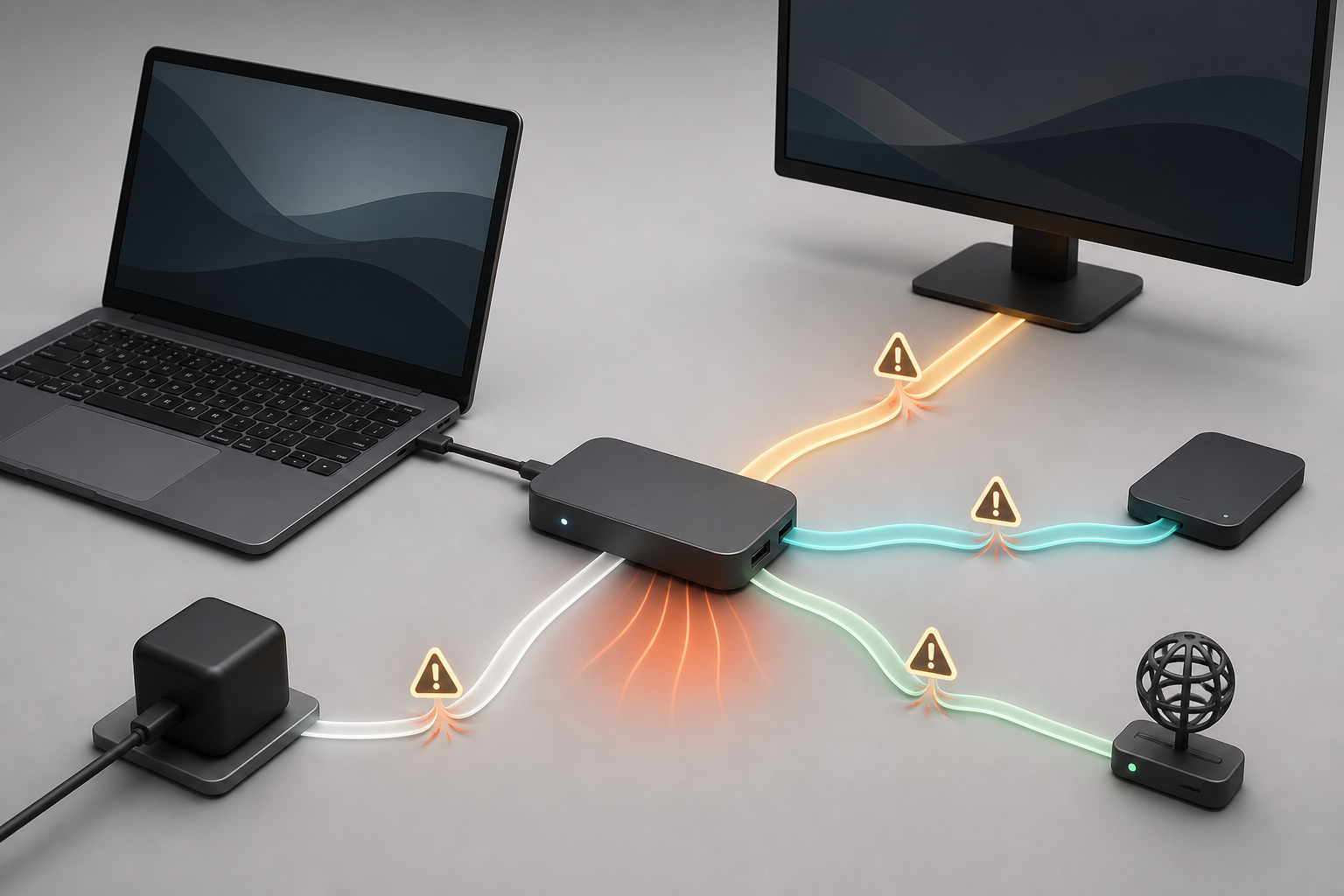
USB-C hub problems usually begin before the hub is plugged in. A buyer sees HDMI, USB, Ethernet, card-reader, and charging ports and assumes every function will work at its headline maximum. The connector alone makes no such promise.
The practical rule is to check the chain in order: your computer’s port, the charger and cable, the display path, the hub’s upstream link, the operating system, and the exact devices you will attach. Port count comes after those checks.
The Quick Answer
A compact USB-C hub is a sensible choice for travel or a modest desk when you need several basic ports at low cost and weight. It is a weaker fit when you require multiple high-resolution displays, consistently fast external storage, high-power laptop charging, and several demanding devices at the same time. For that workload, a powered USB4 or Thunderbolt dock—or direct connections for critical devices—provides a clearer path.
Gearxis did not physically test a hub for this guide. The article translates current USB-IF, VESA, Microsoft, Apple, and DisplayLink documentation into a pre-purchase checklist. Actual throughput, temperature, charging behavior, and display stability remain specific to the computer, hub, cable, charger, peripherals, operating system, and firmware.
Why USB-C Hub Problems Are Easy to Miss
USB-IF explicitly says USB Type-C is not the same thing as USB 3.2, USB4, or USB Power Delivery. Those capabilities are optional implementations, not automatic properties of the reversible connector.
That creates the central buying trap: two identical-looking USB-C ports can support different data rates, charging behavior, and video features. The hub remains constrained by the host port and the computer’s documented display support.
Use the following eight checks before comparing brands.
1. Start With the Exact Host Port
Look up the technical specifications for the exact laptop, tablet, or phone model—not merely the processor family or product name. Record:
- the USB or Thunderbolt generation and stated data rate;
- whether the selected port supports DisplayPort Alt Mode or Thunderbolt video;
- the number, resolution, and refresh rate of external displays supported;
- whether the port accepts USB Power Delivery charging, and at what input;
- any differences among ports on opposite sides of the device.
Windows may report that a display connection is limited when the computer, cable, or dongle does not support the required Alternate Mode. Microsoft’s USB-C troubleshooting guide also notes that connecting through another external hub or dock can be part of the problem.
Mac buyers should check the display-support section for their exact model. Apple’s instructions tell users to verify how many displays the Mac supports along with the required cables and adapters. A hub with two video sockets does not prove that a particular Mac can extend to both.
2. Calculate the Charging Chain
Pass-through charging has at least four participants: the wall charger, charging cable, hub, and computer. The lowest supported limit—or an incompatible link—can determine the result.
Do not treat “100W input” as “100W delivered to the laptop.” Find the hub maker’s stated host-charging output, then confirm that the charger and cable support at least that level and that the computer accepts it. USB-IF’s current certified-cable program uses power markings of 60W or 240W and, for most certified USB-C-to-USB-C cable categories, a data-rate marking as well.
Microsoft lists an underpowered or incompatible charger, an inadequate cable, the wrong charging port, and charging through a hub or dock among possible causes of slow or failed charging. If your laptop must charge quickly under sustained load, a hub’s marketing headline is not enough; verify delivered host power in its manual.
3. Match the Entire Display Combination
Write the intended display setup as one requirement: number of screens, resolution, refresh rate, HDR or color depth if relevant, connection type, and mirror-versus-extend behavior. Then find that exact combination in the hub’s compatibility table.
Display and USB data can compete for the high-speed lanes in a USB-C link. VESA explains that DisplayPort Alt Mode can use some or all four high-speed lanes. A configuration using two lanes can retain simultaneous SuperSpeed USB data; a four-lane display configuration leaves USB 2.0 available on separate pins. The actual allocation depends on the host, hub, cable, and display mode.
This is why a hub can meet a display claim while storage attached to the same hub performs below its own headline interface rate. It is also why “dual HDMI” is incomplete information. Verify extended desktop support, not only whether two connectors are present.
4. Treat Every Data Port as Part of One Budget
USB-IF lists 5, 10, and 20 Gbps transfer modes under USB 3.2 and states that backward-compatible products operate at the lowest common speed capability. A 10Gbps SSD connected to a 10Gbps downstream port does not guarantee a 10Gbps end-to-end path if the host, upstream cable, or hub link is slower.
Multiple devices also compete for resources. Microsoft’s driver documentation says available USB bandwidth can be difficult to predict and that hubs may consume bandwidth while translating transactions. For buying purposes, do not add every port’s maximum and assume the total is simultaneous.
Match the connection plan to the workload:
| Intended use | Safer connection plan | Warning sign |
|---|---|---|
| Keyboard, mouse, basic card reader | One ordinary hub is usually the simplest route | Hub documentation omits port speeds entirely |
| One display plus occasional storage | Verify the exact display mode and remaining USB rate | Only separate maximums are listed |
| Sustained SSD transfers | Use the fastest documented data port; consider a direct host connection | Upstream link speed is absent |
| Webcam, capture device, SSD, and display together | Seek a tested compatibility table or move critical devices to separate host ports | No simultaneous-workload guidance |
The table is a routing rule, not a record of Gearxis measurements.
5. Read the Fine Print for Every Port
Two USB-A sockets on the same hub may use different standards. A USB-C downstream port may provide data only, charging only, or both. A card slot may be labeled by card format without a stated bus speed. Ethernet may require an operating-system driver.
For each port you plan to use, record its direction and function:
- host input versus downstream accessory connection;
- data rate rather than connector shape;
- charging input versus device-charging output;
- maximum display mode and required host protocol;
- simultaneous use restrictions;
- removable or captive upstream cable length.
If the product page does not state an upstream link rate, delivered laptop charging power, and the tested display combinations, assume those questions remain unanswered rather than filling the gaps from a similar model.
6. Check Software, Permissions, and OS Limits
Some hubs carry native display signals. Others use DisplayLink technology to send display data over USB with software. These are different setup and maintenance paths.
On macOS, DisplayLink says its Manager application is required and must receive Screen Recording permission to render DisplayLink displays. The name of that permission can sound broader than the function, but it is still a software and policy requirement that may matter on a managed work computer.
Check the hub maker’s support page for your current operating-system version, processor platform, firmware updater, and driver requirements. If your employer blocks driver installation or privacy permissions, confirm with IT before buying. Buyers who want the lowest-maintenance display path should favor native display support within the computer’s documented limits.
7. Inspect the Cable and Physical Design
A short captive host cable may fit a thin laptop on a desk but pull awkwardly when the laptop sits on a stand. A removable cable is easier to replace, yet it adds another specification that must match the required data, video, and power capability.
Do not infer cable speed from USB-C plugs. USB-IF requires certified USB-C-to-USB-C cables to carry appropriate power markings and, with a USB 2.0 exception, data-rate markings. For uncertified or unmarked cables, verify the manufacturer’s explicit specification.
Heat deserves a practical check without guesswork. Gearxis has not measured safe operating temperatures for a generic hub, and surface warmth alone is not a universal failure test. Follow the manufacturer’s ventilation and operating-temperature instructions. Return or troubleshoot a unit that disconnects, smells abnormal, shows damage, or cannot sustain the advertised workload under the stated conditions.
8. Use the Return Window as a Compatibility Test
Test the exact simultaneous workload immediately after purchase—not one port at a time. Connect the intended monitor mode, charger, storage, Ethernet, and input devices, then check:
- charging status during your normal heavy workload;
- extended-display behavior after sleep and wake;
- storage transfers while the display and network are active;
- Ethernet reconnection after unplugging and reconnecting;
- card-reader and audio-device detection;
- cable strain and hub placement;
- required drivers, permissions, and firmware updates.
This is not a request for an informal benchmark contest. It is a compatibility test against the seller’s stated functions and your actual setup. Save packaging until the test is complete and record the exact computer model, OS version, charger, cable, monitor mode, and peripherals if support is needed.
When a Dock Is the Better Purchase
Choose a powered USB4 or Thunderbolt dock when the desk requires several high-bandwidth devices, stronger documented host charging, multiple supported displays, longer peripheral cables, or a fixed one-cable setup. A dock costs and weighs more, but external power and a higher-capability host link can make its intended workload easier to document.
Use direct laptop connections for devices that cannot tolerate a shared hub path, such as the primary fast SSD or a display at the edge of the host’s supported mode. Mac users can continue with the Gearxis docking-station guide for native Thunderbolt and DisplayLink options.
A compact USB-C hub remains the right tool when portability and basic expansion matter most. Buy it by verified host support, delivered power, exact display mode, upstream data rate, and simultaneous-use documentation—not by the number of holes in the case.