
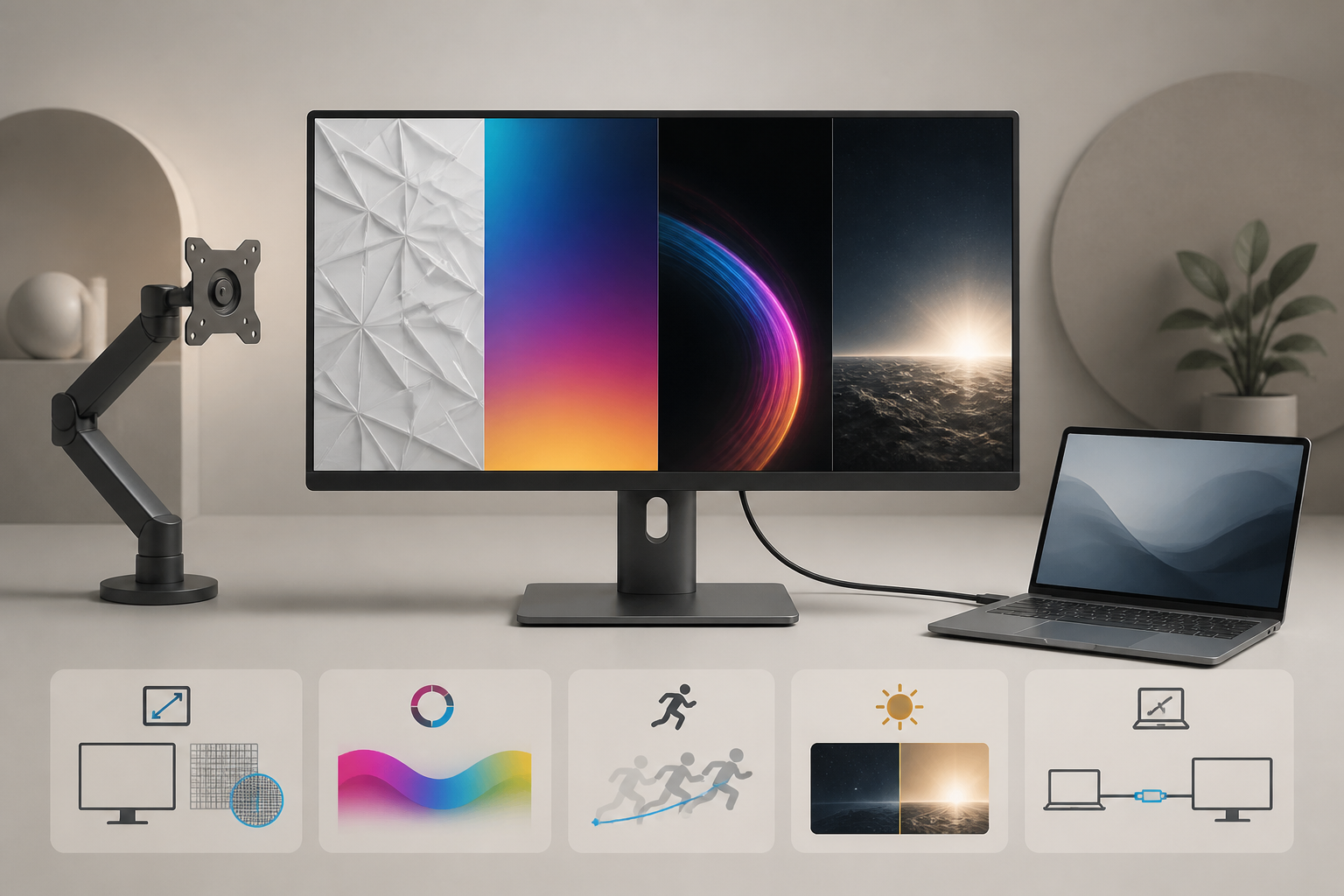
Learning how to choose a 4K monitor means looking past the resolution badge. Every 4K UHD display contains 3840 by 2160 pixels, but those pixels can sit in a small or large panel, refresh slowly or quickly, reproduce a narrow or wide color range, and connect to a laptop through anything from basic HDMI to a full Thunderbolt hub.
The main trade-off is between four priorities: sharpness, trustworthy color, convenient USB-C work features, and price. Spending more may also buy higher refresh rates or stronger HDR contrast, but it does not make the resolution more “4K.”
Gearxis has not tested the monitors discussed as examples in this guide. The decision framework uses current VESA, USB-IF, and HDMI standards information checked August 14, 2026. Product claims still need verification on the exact manufacturer specification page before purchase.
How to Choose a 4K Monitor: Start With the Work
| Main use | Start here | Pay extra for | Usually skip |
|---|---|---|---|
| Documents, coding, and general office work | 27-inch 4K, adjustable stand, reliable 60Hz, useful ports | USB-C charging and a built-in hub | Expensive HDR or creator features you will not use |
| Photo and design work | Verified gamut coverage, factory report, hardware-calibration support if needed | Better uniformity, wider gamut, and service support | Unverified “professional color” language |
| Mixed work and gaming | 4K at 120Hz or higher, adaptive sync, suitable GPU connection | Better response behavior and HDMI/DisplayPort bandwidth | A 60Hz office monitor sold as a gaming compromise |
| HDR films or games | Certified HDR tier, strong black level, local dimming or emissive pixels | Higher DisplayHDR or True Black performance | “HDR compatible” with no meaningful performance evidence |
| One-cable laptop desk | Adequate USB-C power, video, USB data, Ethernet or KVM if required | Thunderbolt/USB4 only when your workflow uses it | Paying twice for ports already supplied by a dock |
If two uses conflict, choose the harder requirement first. A color-critical editor should not sacrifice accuracy for unused refresh rate; a competitive player should not choose a slow panel merely because it has a wider gamut claim.
1. Choose 27 or 32 Inches by Density and Distance
4K UHD contains 8,294,400 pixels. Keeping that pixel count fixed while enlarging the panel makes each pixel physically larger.
Using the diagonal pixel-density formula:
- 27-inch 4K: approximately 163 pixels per inch
- 32-inch 4K: approximately 138 pixels per inch
The 27-inch option renders text and fine edges more densely at the same viewing distance. The 32-inch option makes the physical canvas larger and can be more comfortable when you sit farther away or want larger interface elements, but it does not add workspace pixels.
There is also a workload cost. A 2560-by-1440 QHD screen contains 3,686,400 pixels; 4K contains 2.25 times as many. That extra detail is valuable for text, photos, timelines, and multiple windows, but a game must render substantially more pixels when run at native resolution.
Choose 27-inch 4K for a normal-depth desk and dense text. Choose 32-inch 4K for more physical size, a deeper desk, or easier viewing from farther away. If very high frame rates matter more than fine detail, QHD asks the system to render only about 44% as many pixels as 4K and may be the more practical target.
2. Decide How You Will Use Scaling
Pixel density and usable workspace are related but not identical. Operating-system scaling can make text and controls larger while preserving much of 4K’s edge clarity. Running everything at its smallest native-size appearance may create more apparent workspace, but it can also make interface elements uncomfortable.
Before buying, set a similarly sized 4K display to the scaling level you expect and check your most important applications. Older utilities, remote desktops, virtual machines, and mixed-density multi-monitor setups deserve particular attention because their interface behavior may differ.
Mac users who want a denser 27-inch desktop should also compare 5K. A 27-inch 5K display contains more pixels than a 27-inch 4K model and can suit a Retina-style workflow, but usually costs more and offers fewer mainstream choices. Our Apple Studio Display review explains that more integrated route.
3. Match Color Claims to the Deliverable
Color gamut describes the range a monitor can reproduce; it does not by itself prove accuracy, panel uniformity, or stability over time. A monitor can advertise high coverage and still need correction for paid color work.
For ordinary web, office, and general media use, strong sRGB or BT.709 coverage is the practical baseline. Photo, print, cinema, and wide-gamut video workflows may require Adobe RGB, DCI-P3, or another specified space. Buy the gamut your deliverable uses, not the largest percentage in the comparison table.
For color-sensitive work, look for:
- the exact color space and stated coverage;
- a factory calibration report tied to the unit;
- an accuracy target expressed with a named metric;
- uniformity compensation or documented panel-uniformity testing;
- support for the calibration hardware and software you actually use.
Manufacturer figures are selection filters, not Gearxis measurements. If a client decision depends on accuracy, prioritize independent measurements, a return policy, and a calibration plan over decorative creator modes.
4. Treat HDR as Contrast, Not a Checkbox
An input that accepts an HDR signal is not automatically capable of showing convincing HDR. Useful HDR depends on brightness, black level, contrast within the same scene, color volume, bit depth, tone mapping, and how quickly the display changes luminance.
VESA’s current DisplayHDR performance criteria test peak and sustained luminance, black level, active dimming, gamut, bit depth, rise time, static contrast, and accuracy. That makes a verified certification tier more informative than vague “HDR ready” wording.
Do not read DisplayHDR 400, 600, and 1000 as brightness alone. Higher certified tiers impose different contrast, black-level, gamut, and dimming requirements. OLED and other emissive panels use the DisplayHDR True Black family, which focuses on extremely low black levels as well as luminance.
If HDR is optional, choose the monitor on its SDR quality and consider basic HDR support a bonus. If HDR is central, verify the exact certification, dimming design or emissive panel behavior, full-screen brightness, and the independent measurements relevant to your room.
5. Buy the Refresh Rate Your Hardware Can Deliver
At 60Hz, the display can present up to 60 refreshes per second. Moving to 120Hz or 144Hz makes scrolling, pointer movement, animation, and games look more fluid when the computer supplies frames fast enough. It also raises connection-bandwidth requirements at 4K.
HDMI Licensing Administrator lists 4K at 120Hz among HDMI 2.1b capabilities. That does not mean every port, cable, GPU, dock, or monitor labeled with a broad HDMI generation exposes every mode. Check the exact resolution, refresh rate, color depth, HDR mode, and adaptive-sync support across the complete path.
For office work, dependable 60Hz can be the right value. For mixed work and games, 120Hz is a noticeable quality-of-use upgrade. Competitive gaming may favor still higher refresh rates at QHD rather than asking the GPU to drive 4K.
6. Audit USB-C as Five Separate Features
USB-C is a connector, not a promise. USB-IF explicitly states that USB Type-C is not automatically USB4, USB 3.2, or USB Power Delivery. VESA likewise documents that DisplayPort Alt Mode can combine video, USB data, and power—but only when the host, display, and cable support the required capabilities.
Check these five lines independently:
- Video: Does the computer’s USB-C port support DisplayPort Alt Mode, USB4, or Thunderbolt at the required resolution and refresh rate?
- Power: How many watts can the monitor deliver, and is that sufficient for the laptop under its intended load?
- USB data: What speed remains for the monitor’s downstream ports while video is active?
- Desk features: Do you need Ethernet, KVM switching, audio, a webcam, or display daisy-chaining?
- Cable: Is the included or selected cable rated for the required video, data, and power combination?
USB-IF warns that USB-C cables do not all have the same capabilities. A charging cable can fit perfectly yet fail to provide the desired data or display mode.
A premium hub monitor can still be good value when it replaces a dock and charger. It is wasteful when those functions duplicate equipment already on the desk. See our Mac docking-station guide for a deeper display-and-dock compatibility check.
7. Price the Stand, Warranty, and Missing Hardware
The panel is only part of the purchase. A monitor without height adjustment may require an arm. A weak port selection may require a dock. Low USB-C power may leave the laptop charger on the desk. A short warranty or poor dead-pixel policy changes the risk of a seemingly inexpensive display.
Build a total desk price that includes:
- the monitor;
- any arm or VESA adapter;
- required certified cables;
- dock, charger, Ethernet adapter, or KVM not supplied by the monitor;
- calibration hardware or software when accuracy matters;
- the value of the warranty and return window.
Then remove features that do not solve your workflow. A costly Thunderbolt monitor can be economical when it replaces several reliable devices; an inexpensive panel can become expensive after an arm, dock, and cable upgrades.
For current product examples grouped by work needs, use the Gearxis 4K monitor shortlist for work. This article supplies the selection method; that guide supplies the shortlist.
The Final Selection Rule
Choose in this order: use case → screen size and density → color requirement → refresh/HDR priority → connection path → ergonomics → total cost. Resolution comes first only because it defines the category. The qualities that make a particular 4K monitor right for you appear after the badge.
A 27-inch 4K USB-C monitor is the practical default for sharp office and creative work. Move to 32 inches for physical size, to high-refresh QHD when gaming performance matters more than density, or to 5K when a denser Mac-centered desktop justifies the premium. No option wins universally; the useful monitor is the one whose trade-offs match the desk you already understand.